Before you start
Good news: adding Citation Gap to Claude works on any Claude plan, including the free tier. You do not need Pro, Max, Team or Enterprise. Everything below happens inside Claude's own settings, there is nothing to download, and it takes about two minutes from start to finish.
Open Claude's settings
Go to claude.ai in your browser (or open the Claude desktop app) and sign in. In the bottom-left corner, click your name or profile picture to open the account menu, then choose Settings.
This is easiest on a computer, where you can paste the connector URL in a couple of clicks. You can manage connectors on mobile too, but the desktop flow below is the quickest.
Open Connectors and choose Add custom connector
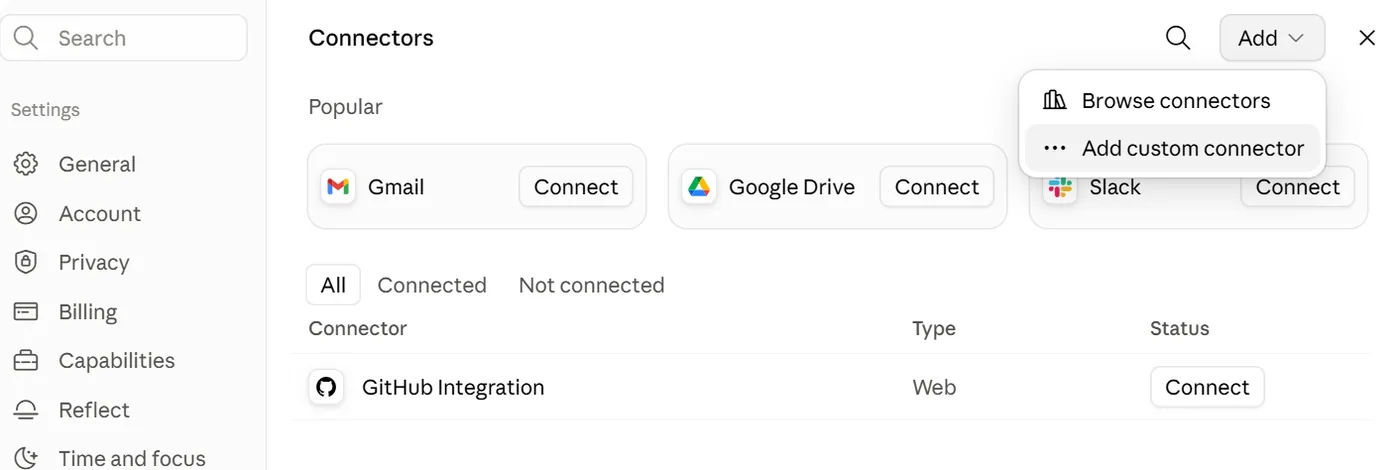
In the Settings window, select Connectors in the side menu, the page where Claude lists every tool and data source it can use. At the top right, open the Add menu and choose Add custom connector. A dialog opens asking for a name and a URL.
Paste the Citation Gap URL
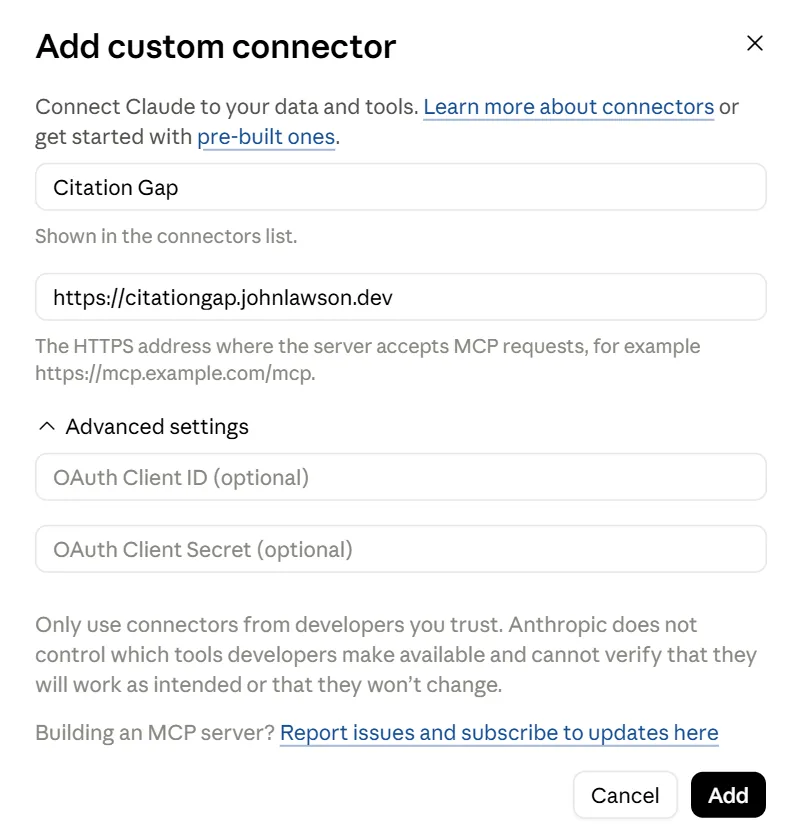
Give the connector a name so it is easy to spot later, for example Citation Gap, then paste this address into the URL field:
https://citationgap.johnlawson.dev/mcpDouble-check there are no extra spaces before or after the URL, then click Add.
Connect and authorize
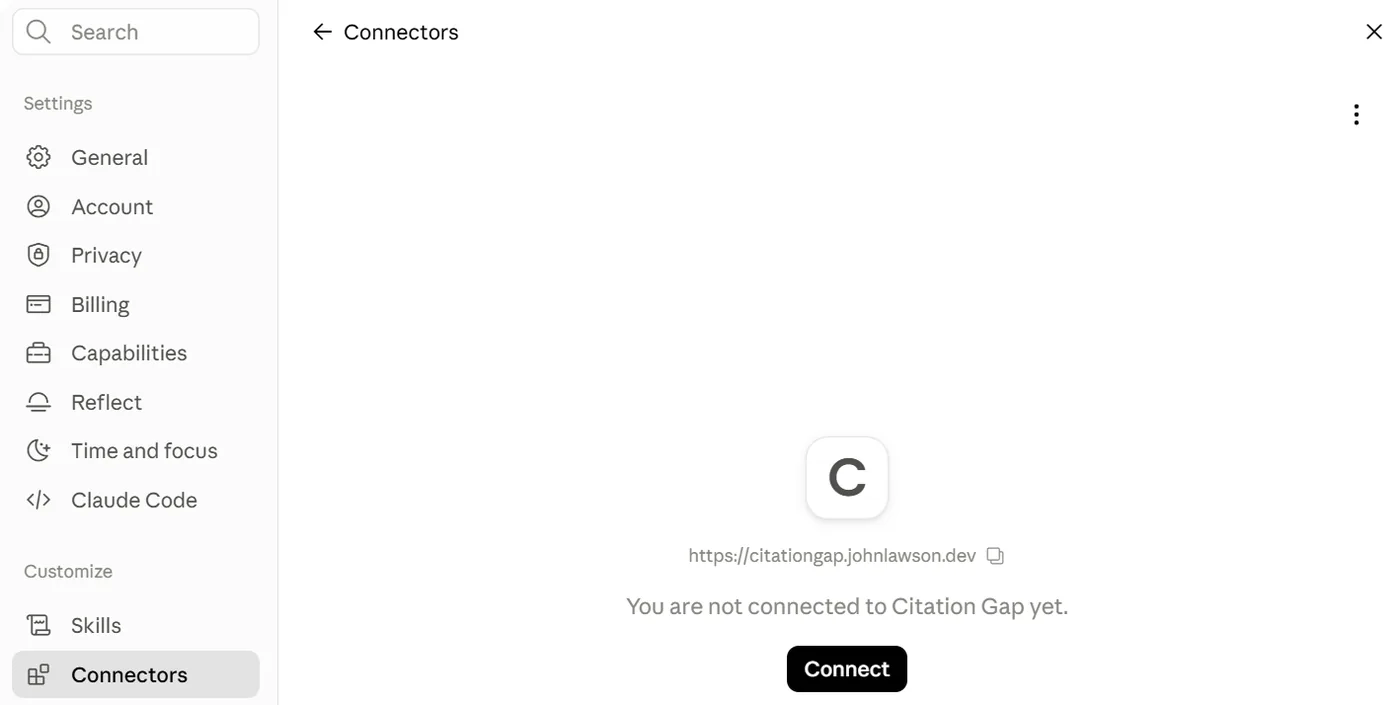
Citation Gap now appears in your connectors list. Open it and click Connect.
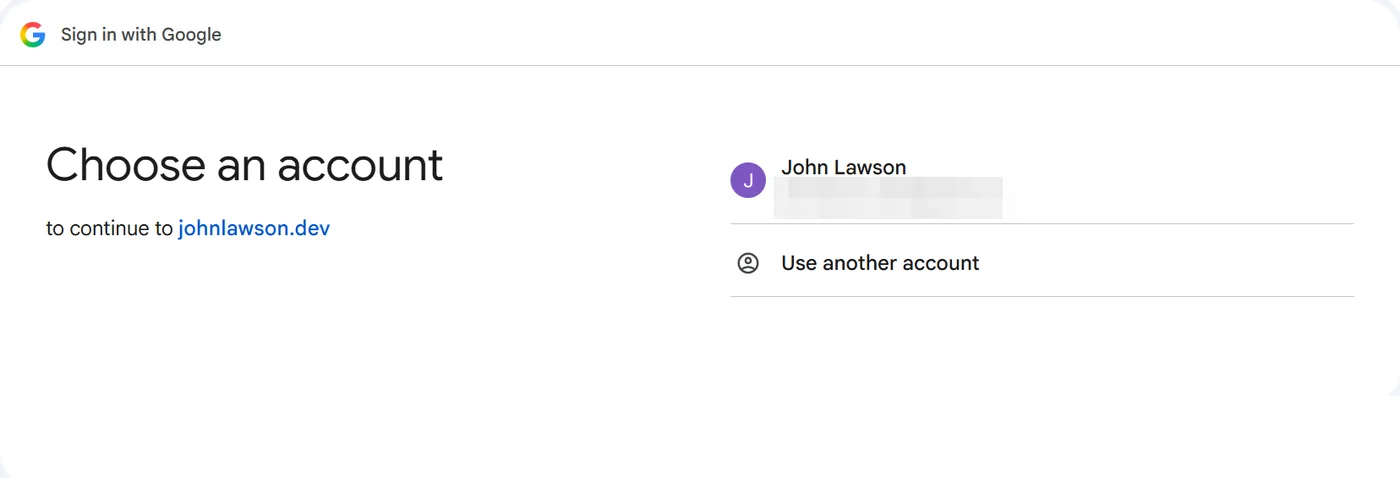
Claude sends you to a quick Sign in with Google screen, choose the account you want for your reports.
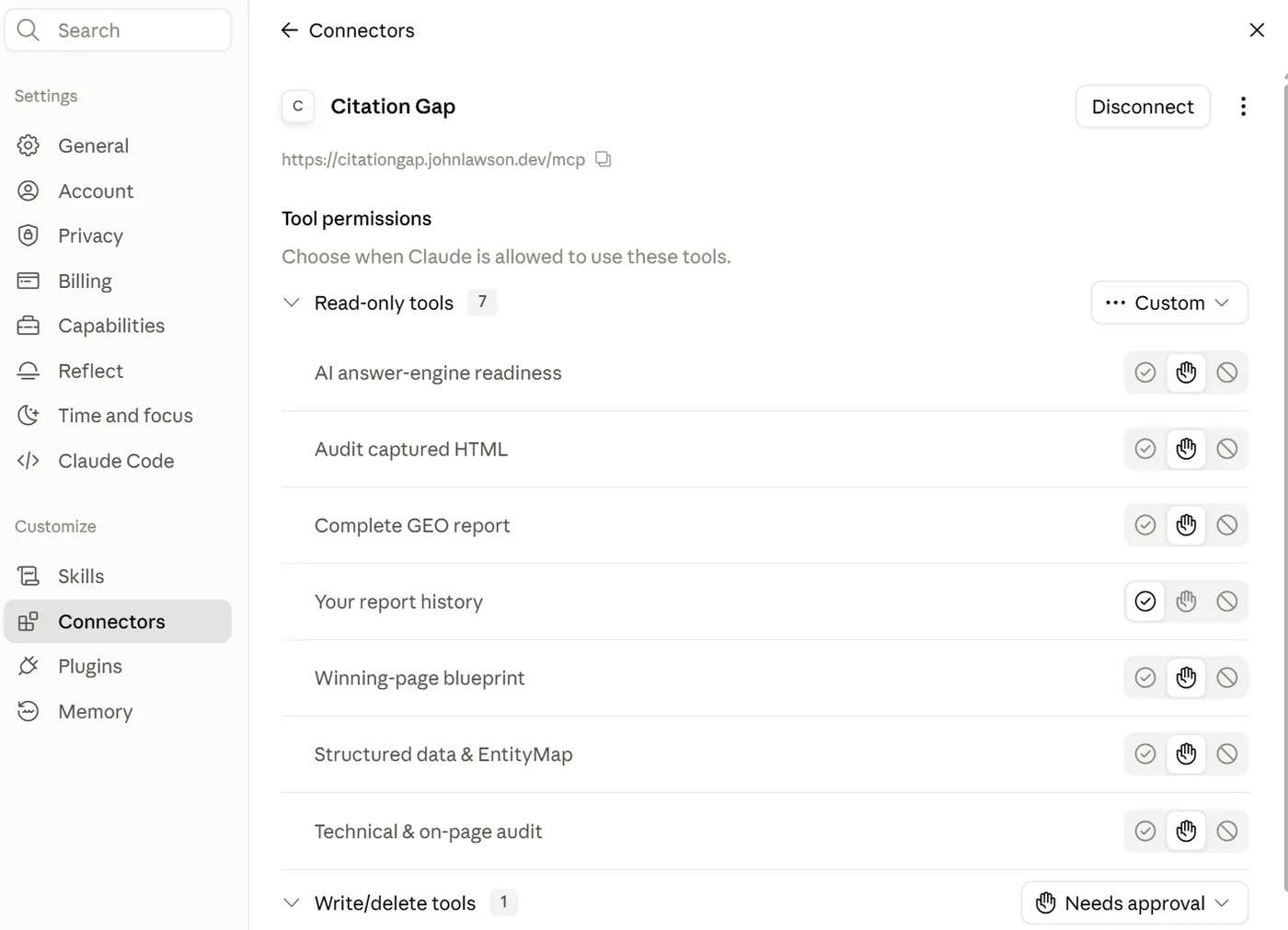
When it finishes you are returned to the connector page, where Citation Gap shows as connected, with its tools listed and a Disconnect button. The permissions are limited to running audits and returning reports, and you can disconnect at any time from this same page.
Run your first audit
Open a new chat and ask Claude to audit a page. Be specific: give it the page URL, the search query you want to win, and two to six competitor URLs. For example:
Using Citation Gap, audit https://example.com/ for the query 'best running shoes for flat feet' against these competitors...
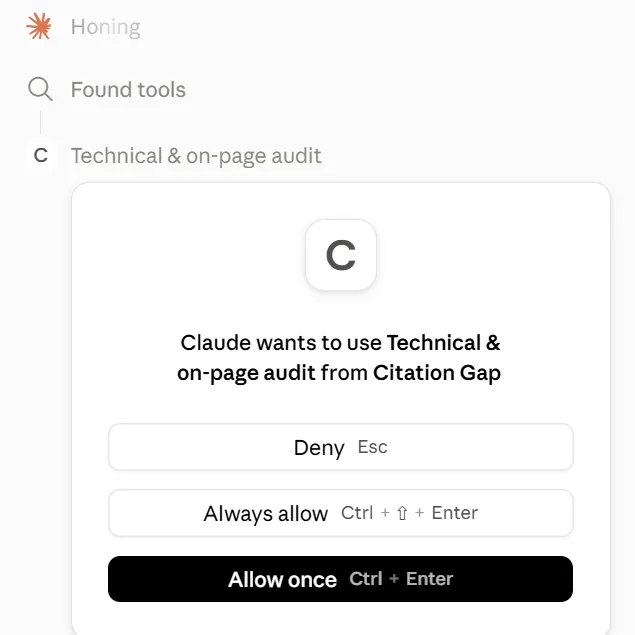
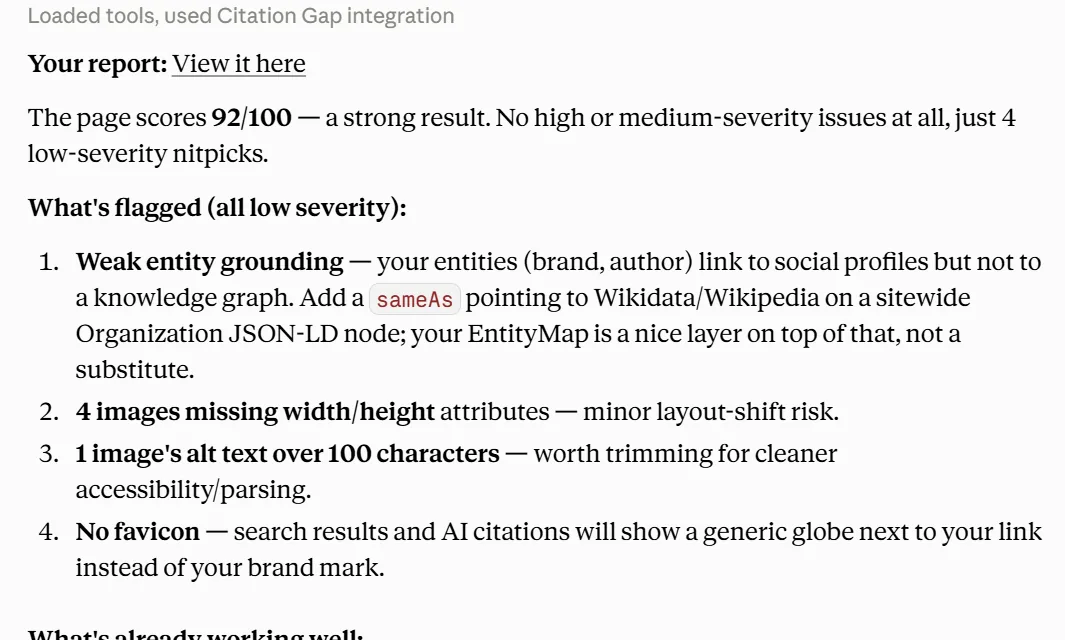
When the audit finishes, Claude gives you a View it here link, click it and confirm Open link to open your full report, which you can share or download as a PDF.
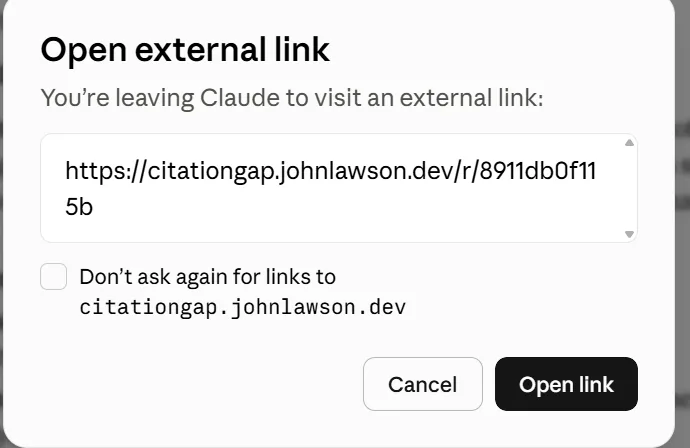
The first time you open a report Claude asks you to confirm, check Dont ask again and click on Open link.
What you can do once it is connected
Citation Gap runs the exact same audit engine on every surface, so a report you generate inside Claude is identical to one produced anywhere else. Once it is connected, you can ask Claude to:
- Score any page out of 100 for how ready it is to be cited by AI answer engines like ChatGPT, Google AI Overviews, Perplexity and Claude.
- Benchmark you against competitors, showing the content gaps and information gain: what rival pages cover that yours does not.
- Get a prioritised Action Plan with paste-ready JSON-LD, wording rewrites and technical fixes, each one copy-and-paste ready.
- Check answer-readiness and structured data: whether engines can quote your page, and which schema types are missing.
- Hand back a shareable, downloadable report with a public link and a one-click PDF.
Tips for using it in Claude
It is free. Unlike most tools, custom connectors are available on Claude's free plan, so you can run full audits at no cost.
Add it to a Project. If you audit pages regularly, attach Citation Gap to a Claude Project so it is always on hand alongside your notes and instructions.
It is native. Citation Gap speaks MCP, the open standard Anthropic created for connecting tools to Claude, so it works as a first-class connector with no workarounds.
Ask follow-ups. Because it runs inside a conversation, you can ask Claude to explain any finding, draft the fix, or re-audit after you have made changes.
Frequently asked questions
Do I need a paid Claude plan?
No. Custom connectors work on Claude's free tier, so you can add Citation Gap and run audits without paying for Pro, Max, Team or Enterprise.
Is my data safe?
Citation Gap only receives the page URL, query and competitor URLs you ask it to audit, and returns a report. It does not read your other chats or files, and you can disconnect it any time from Settings then Connectors.
Which pages can I audit?
Any public web page. Give Claude the page URL, the query you want to win, and two to six competitor URLs for the fullest report.
Where do the reports go?
Each audit produces a hosted report at a shareable link, with a downloadable PDF. The link stays live so you can send it to a client or teammate.
Can I use it in the Claude desktop app?
Yes. Connectors added to your account work across claude.ai and the desktop app.